
On this page
Internal testing is Google Play's fastest feedback loop: upload a bundle and it can reach your first testers within minutes, before any wider audience sees the app. This guide covers what an internal test is, who can join, how to set one up, and exactly how it fits — and does not fit — into the broader testing and release workflow.
What an internal test is for
An internal test distributes a pre-release build to a small, known group of testers you add by email. It's a quality-assurance channel, not a public beta — the build is not searchable on Google Play, and only people you invite can install it.
Internal testing is also a safe place to test apps that aren't fully configured. Until your app receives its first review, users see a temporary name on Google Play — and once you upload an artifact, the package name is fixed and cannot be changed.
When to use internal testing
- Pre-flight checks before a closed test — get your team validating the build before you start the 14-day closed window.
- Post-launch debugging — push quick fixes and hotfixes to a small team without touching the public tracks.
- Testing apps not yet ready for public visibility — the listing can be a draft; internal testers get the link directly.
- Validating paid-app purchasing — internal testers install paid apps for free, though they still pay for in-app purchases.
Internal vs closed testing
Both tracks keep your build off public search, but they serve different points in the release journey. The table below is a quick comparison — the full tracks breakdown lives in the testing-tracks guide.
| Track | Purpose | Typical audience | Tester limit | Primary use | Counts toward closed-test requirement? |
|---|---|---|---|---|---|
| Internal testing | Fast team QA before wider release | Up to 100 trusted testers you invite | 100 testers per app | Pre-flight and post-launch debugging | No |
| Closed testing | Controlled beta with real-user feedback | Only invited testers (lists or Google Groups) | Lists up to 2,000; Groups unlimited | The 12-tester closed test for production access | Yes |
| Open testing | Public beta visible on Google Play | Anyone with the link, or anyone who finds the listing | Unlimited, or at least 1,000 if limited | Pre-launch public feedback after production access | No — requires production access |
| Production | Live release to all users | Everyone on Google Play in targeted countries | Unlimited | General availability | N/A |
Setting up an internal test
Open the Internal testing page
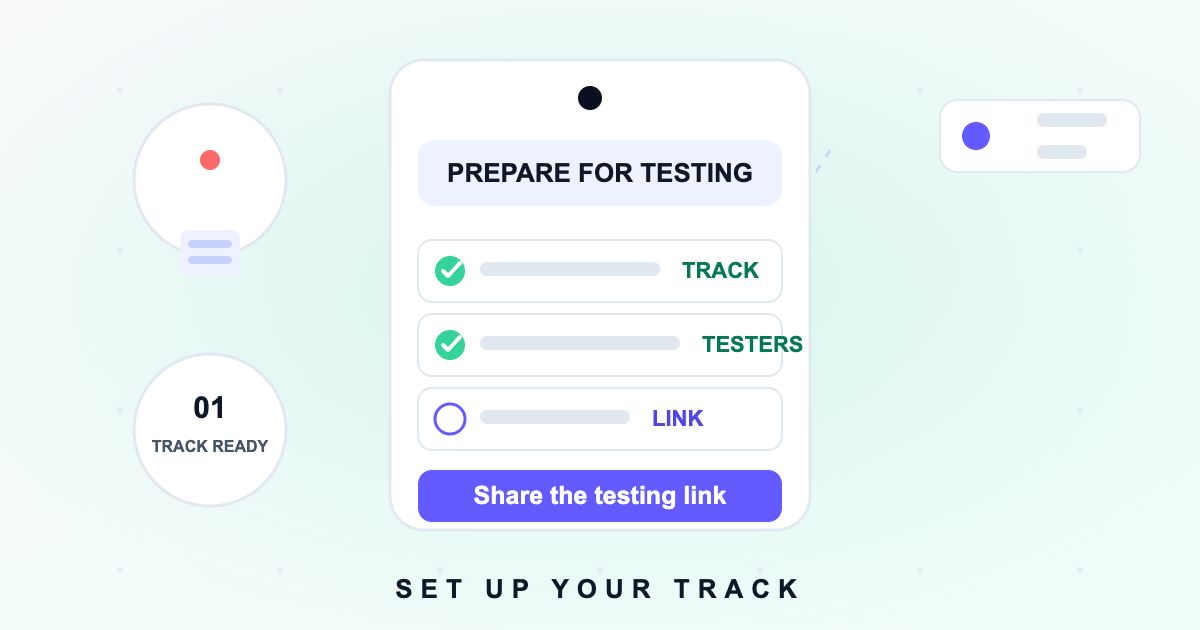
In Play Console, go to Test and release > Testing > Internal testing. Your app's first internal track appears by default.
Add testers
Open the Testers tab, create an email list, and add up to 100 Google Account addresses (or upload a single-column CSV — note uploads overwrite typed addresses). Internal testing supports email lists only; Google Groups are not used here.
Upload your release
Attach a signed Android App Bundle, enter release details and notes, then save as draft and start the rollout flow.
Review and send for review
If your app needs Google review (first release or policy-sensitive changes), submit from the Publishing overview page. Internal tests may not be subject to the full Play policy review — but that exemption is not guaranteed, so treat review as still required.
Copy the opt-in link and share it
Once the release is Published, the Testers tab shows a shareable link. Send that link directly to your testers — internal tests are never discoverable by searching Google Play.
How testers join and install
Testers open the link you shared on the Google Account you added to the list, tap Become a tester, then install from the Play Store page that opens. The link only appears in Published status — drafts and pending releases won't show it.
Running tracks side by side
You can run an internal test concurrently with a closed or open test for a different app version. Two constraints apply:
- A tester opted into your internal test is no longer eligible for your closed or open test — they must opt out of internal first.
- Version-code rules still apply: users eligible for multiple tracks get the highest version code published across those tracks.
What internal testing is not for
- It cannot satisfy the 12-tester closed-test milestone.
- It cannot be searched on Google Play — the link is private by design.
- It's not a substitute for real-world device testing with external users.
Sources & references
Official Google documentationThese links open Google's official Play Console Help pages used to verify this guide. AppsTestLab guidance is independent and not affiliated with Google.
Get help doing this