
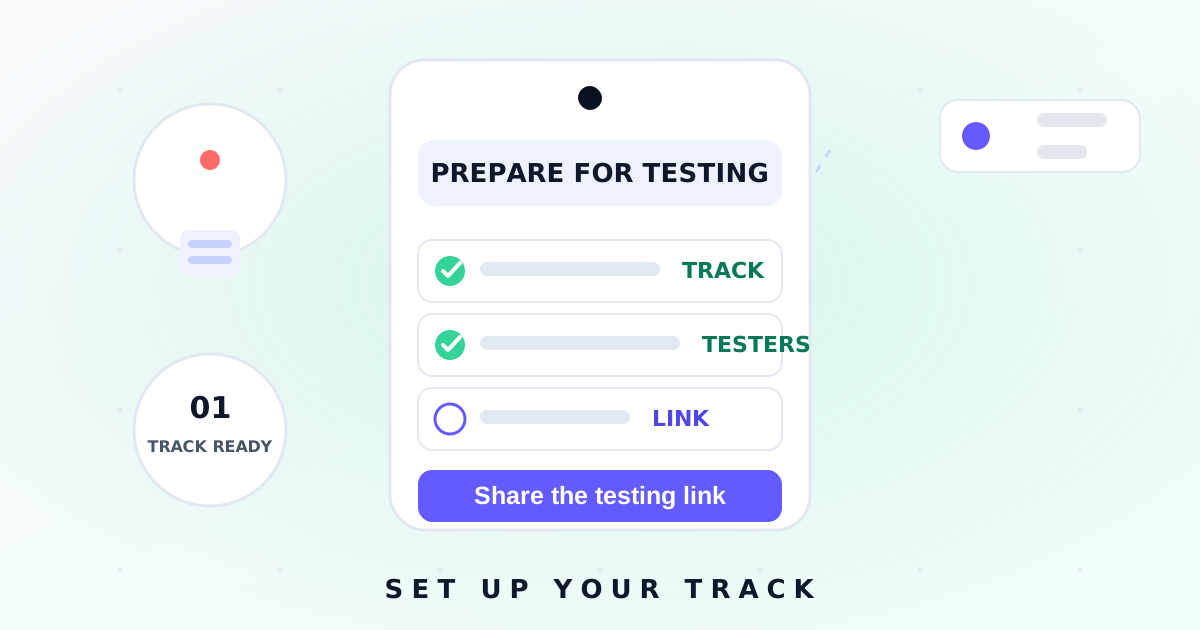
Adding testers to a closed test is a two-part job: the tester list in Play Console, and the opt-in link that brings people into the test. This walkthrough covers both, exactly as they appear in the Console.
Create your tester list
Open Play Console, go to Testing > Closed testing, select Manage track, and open the Testers tab. Under Testers, choose Create email list.
Name the list
Give the list a clear name like "Launch testers v2". You can reuse the same list across future tests and other apps.
Add email addresses
Separate addresses with commas, or upload a CSV file containing them. A CSV upload overwrites any addresses you've already typed, so use one method per list.
Save and create
Select Save changes, then Create. The list is now linked to your closed track.
Manage testers with Google Groups
Instead of email lists, pick the Google Groups option and enter the group's address in the format yourgroupname@googlegroups.com. Only members of the group will be able to join your test — and each tester still needs to opt in individually using the link.
Share the opt-in link
The opt-in link lives on the track's Testers tab and only appears once your release is published to the track — drafts and pending releases won't show it. Testers click the link, read the explanation of what testing involves, and opt in on their device.
Watch the AppsTestLab explanation

Sources & references
Official Google documentationThese links open Google's official Play Console Help pages used to verify this guide. AppsTestLab guidance is independent and not affiliated with Google.
Get help doing this